
Quick reference guide
Yealink AX83H user guide
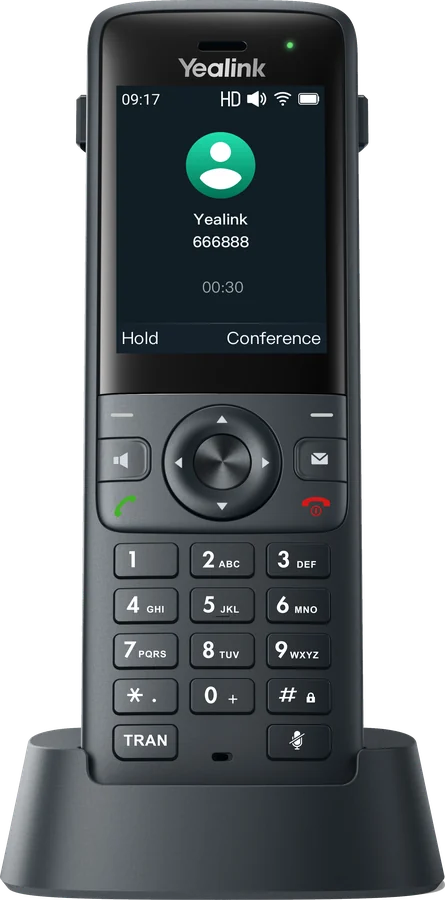
The AX83H is a cordless business phone that connects to your office Wi-Fi instead of a DECT base, so it works wherever your Wi-Fi reaches. It has a 2.4-inch colour screen and Bluetooth for a headset.
Keys and lights explained Everyday tasks step by step Printable two-page PDF
Getting to know your phone
Keys and controls
| Key | What it does |
|---|---|
| Screen and soft keys | The keys under the screen do what the label above them says. |
| Navigation and OK | Move through menus. OK confirms and opens the main menu. |
| Green Off-hook key | Answers and makes calls. |
| Red On-hook key | Ends or rejects a call. Hold it to switch the phone off or on. |
| Message key | Dials your voicemail. |
| Speakerphone | Hands-free calls. |
| TRAN key | Transfers a call. |
| Mute key | Turns your microphone off and on. |
| Keypad | Numbers, letters and symbols. |
| USB-C socket and headset socket | Charging, and a 3.5 mm wired headset. |
Everyday tasks
How to use your Yealink AX83H
Soft key labels and settings are set up for your business, so yours may differ slightly. Call us if something is not where you expect.
Make a call
- Dial the number on the keypad.
- Press the green Off-hook key.
Answer and end
Press the green Off-hook key or Speakerphone. Press the red On-hook key to end the call.
Hold and resume
Press the Hold soft key during a call. Press Resume to return to the caller. Use Swap to move between a held call and an active call.
Mute
Press the Mute key. Press it again to unmute.
Transfer without speaking first
- During the call, press TRAN.
- Dial the number, or press Directory and choose a contact.
- Press B Transfer. The call goes straight through.
Transfer after speaking first
- During the call, press TRAN; the caller is held.
- Dial the number and press OK or TRAN to call.
- When your colleague answers, introduce the call, then press TRAN.
Conference
- During a call, press Conference; the first caller is held.
- Dial the next person.
- When they answer, press Conference again. You can add up to five people in total.
Redial and history
From the idle screen, press the green Off-hook key, then press it again to redial the last number. Press History for missed, received and dialled calls.
Directory
Press Directory, choose a group or All Contacts, select the contact and press the green Off-hook key.
Do not disturb and forwarding
Press OK, then Features. Choose DND, or Call Forward and then Always, Busy or No Answer. Turn it on, enter a number if asked, and press Save.
Voicemail
Press the MESSAGE key (you can also dial *86 on Gamma Horizon or *2 on Yeastar). The status light flashes slowly when you have a new message.
Wi-Fi and charging
The phone joins your office Wi-Fi; if it loses the network, press OK, then Wi-Fi, and choose your network. Charge it in the cradle or with a USB-C cable. The light is red while charging and green when full.
Status lights
Status light
| Light | Meaning |
|---|---|
| Solid red | Starting up, or charging |
| Solid green | Fully charged |
| Fast flashing red | Incoming call |
| Slow flashing red | Voicemail, missed call or message |
| Off | Idle, or switched off |
Feature codes
Codes for your phone system
Dial these from the keypad. Not sure which system you have? Call us on 0333 358 3000.
Gamma Horizon
Gamma Horizon
| Code | What it does |
|---|---|
| *86 | Listen to your voicemail |
| *62 | Voicemail portal |
| *78 / *79 | Do not disturb on / off |
| *72 / *73 | Forward all calls on / off |
| *21 / #21 | Forward all calls to voicemail on / off |
| *98 | Pick up a call ringing in your group |
| *97 + ext | Pick up a call ringing on a colleague's phone |
| *68 / *88 | Park a call / retrieve a parked call |
| *67 + number | Withhold your number for one call |
| *66 | Redial the last number |
Yeastar P-Series
Yeastar P-Series
| Code | What it does |
|---|---|
| *2 | Listen to your voicemail |
| *12 + ext | Leave a voicemail for a colleague |
| *3 + ext | Attended transfer during a call |
| *03 + ext | Blind transfer during a call |
| *31 + number / *031 | Forward all calls on / off |
| *93 / *91 | Do not disturb / available |
| *4 | Pick up a call ringing in your group |
| *04 + ext | Pick up a call ringing on a colleague's phone |
| *5 / 6xxx | Park a call / retrieve it from slot 6xxx |
| *1 | Start or pause call recording, if enabled |
Standard Yeastar codes. If your system has been customised, yours may differ.
Need help with your Yealink AX83H?
Our engineers can talk you through any feature, Monday to Friday, 09:00 to 17:15. Out-of-hours support is available by arrangement.