
Customer support
Technical support from the engineers who installed your system
Support calls are answered by our engineering team, Monday to Friday, 09:00 to 17:15, with out-of-hours support available by arrangement. The checks below resolve many common faults and are worth trying before you call.
Engineer-led support Remote assistance available Out-of-hours support by arrangement
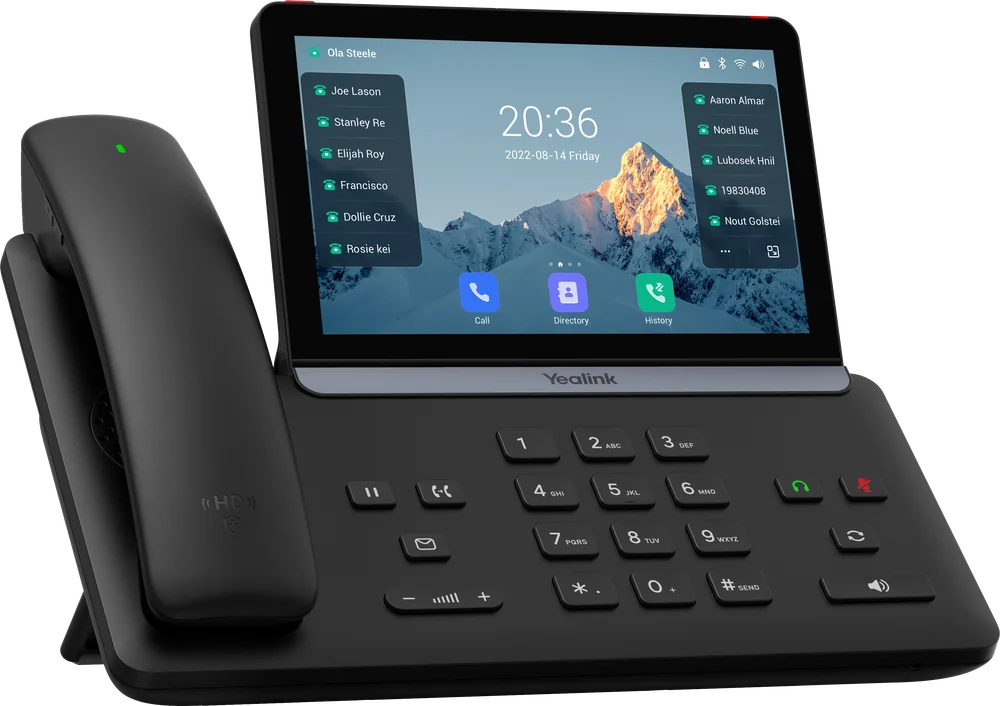
Support line open
Monday to Friday, 09:00 to 17:15
Support options
How to contact support
Telephone
The quickest way to report a fault. An engineer will begin diagnosis during the call.
Support portal
Log a ticket and follow its progress online. Logins are issued to named contacts at existing customers.
Remote assistance
Install our remote support tool so an engineer can securely connect to your computer when you ask us to.
Engineer’s note
When you contact us
To help us diagnose the fault quickly, please have your company name, the affected site, the extension or number involved, and the time the issue started. For non-urgent requests, email service@maincoms.co.uk. Out-of-hours support is available by arrangement.
Remote assistance
Fixed remotely, without waiting for a visit
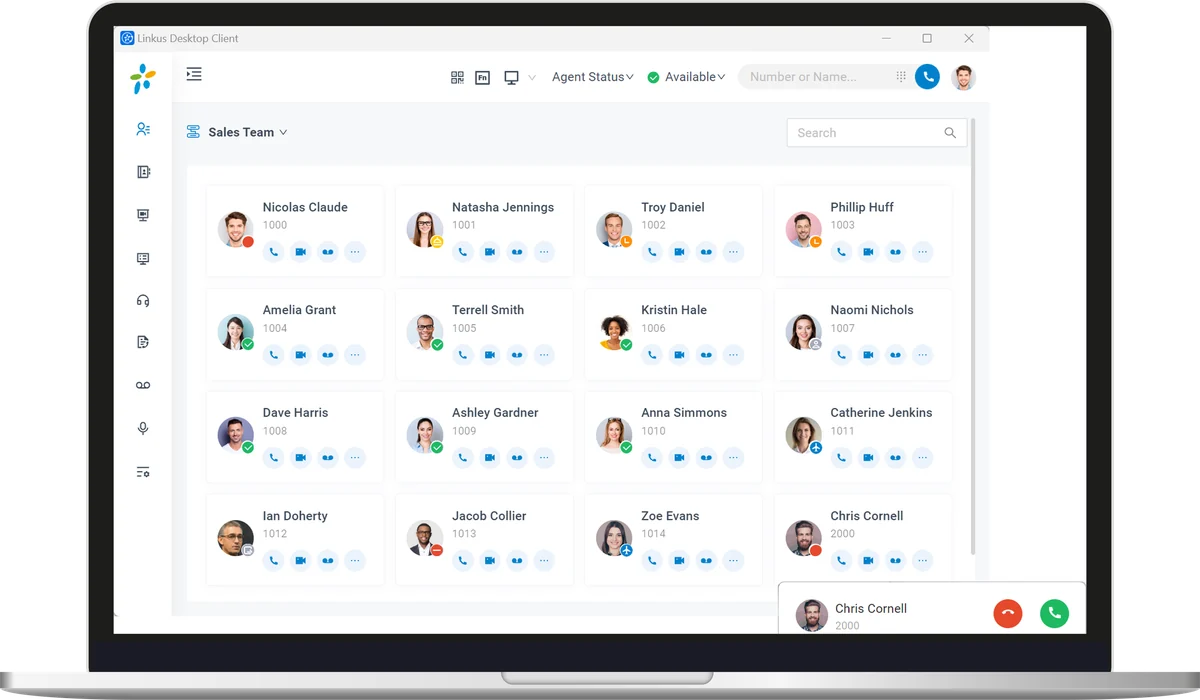
Many issues with apps, handsets and settings can be resolved remotely. With your permission, an engineer connects to your computer using our secure remote support tool, or makes changes directly on your phone system.
- Connection only starts when you share a session code
- You can see everything the engineer does
- Most configuration changes made the same day
FAQs
Initial troubleshooting
These steps resolve many common faults. If the issue continues, contact support.
Internet connection not working
Connect a computer directly to the router with a network cable. If this works, the fault is likely to be with the Wi-Fi; restart your wireless access points and allow around five minutes for them to recover.
If the wired connection also fails, power the router off at the mains and back on. Allow 5 to 15 minutes for it to reconnect.
Do not press the reset button on the router. This erases the configuration we have applied. If service is not restored, call us on 0333 358 3000.
Handset cannot make or receive calls
Most of our handsets operate over the internet, so first confirm that the internet connection is working.
Disconnect the handset (or its power supply) for ten seconds and reconnect it. This resolves many handset faults. If it does not, call support.
Mobile or desktop app not connecting
Check that the app is up to date in your app store, as operating system updates can affect older versions.
Close the app fully and reopen it. If it still does not connect, call support.
Poor call quality
Choppy or broken audio is usually caused by network congestion, for example large uploads or video calls on the same connection. Note the time and number affected and let us know; we can review the line and confirm QoS settings on the router.
Support portal
Request access to the support portal
Existing customers can log and track support tickets in our online portal. If you do not yet have a login, request one here and we will set up your account, usually within one working day.
Access is set up for named contacts at existing customers. For urgent faults, please call 0333 358 3000.
Contact
Report a non-urgent issue
Provide the details below and an engineer will respond. For urgent faults, please call 0333 358 3000.
5 Acorn Business Centre, Northarbour Road, Portsmouth PO6 3TH
Monday to Friday, 09:00 to 17:15
Out-of-hours support by arrangement